Availability
Tutors publish active time slots; families use enquiries to confirm which listed time works.

A professional path for independent tutors
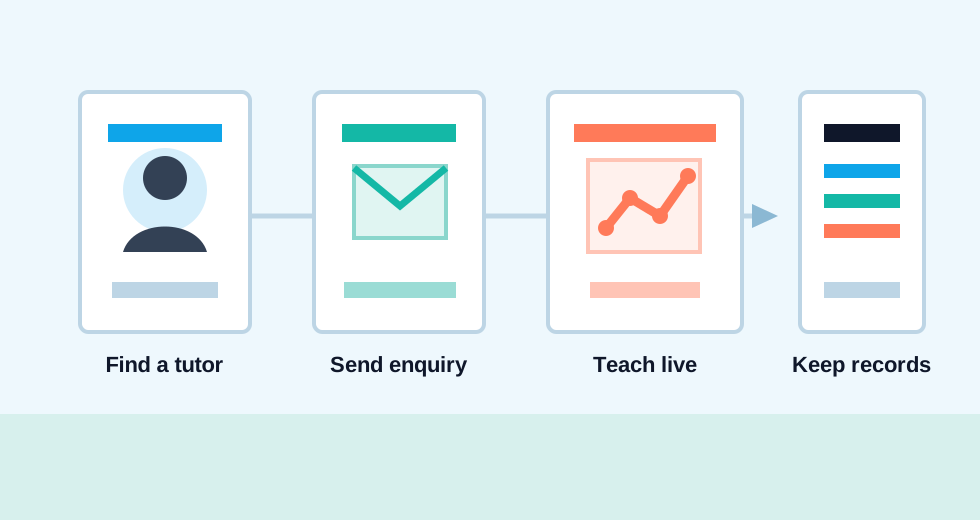
Tutors create the platform's public accounts: build a free profile, receive enquiries, connect clients, and add teaching and business tools when useful. Guests still browse and make first contact without an account.
Independent tutors
Your public profile and ordinary enquiry replies stay free. Membership adds business and teaching tools; it is not permission to communicate and does not raise your directory position.
Public signup is for tutors. Confirm your email, then present your services through a free profile.
Add subjects, learner groups, location, rates, teaching options, availability, and your approach. More complete profiles appear ahead of sparse profiles by default.
Receive and answer enquiries for free. Save an ongoing client and invite their household to a free portal for eligible connected records.
Choose membership when live lessons, recordings, billing, receipts, analytics, and extended workflows support your work.
Guests and learner households
Browsing and first contact stay simple and free. You only receive a learner household account invitation after a tutor connects you as a client.
Filter tutors by subject, location, teaching option, learner group, rate, and availability.
Review profiles, experience, lesson details, and identity badges where available.
Use a private email to receive your secure message link. The tutor sees a random guest name unless you share more.
Confirm lesson details with the independent tutor. If the relationship continues, the tutor can connect and invite your household.
One shared household login can hold eligible conversations and records connected by a tutor. You never need an account to browse the directory or send your first enquiry.
Connected tools
Availability depends on account type, membership status, browser support, and the tutor's chosen workflow.
Tutors publish active time slots; families use enquiries to confirm which listed time works.
Eligible tutors can teach on a notebook-style board, share a read-only view, and export lesson PDFs.
Supported sessions can be recorded for follow-up. Recordings remain available for 24 hours and should be downloaded before expiry.
Tutors can create invoices, record payments, issue receipts, and share clear public document links.
Trust and privacy
Moderation, reporting, and spam checks support safer conversations. Tutor-selected contact details and profile links may be public; private identity documents are not published as part of the profile.

A newly uploaded identity document stays private while awaiting admin review. It is not a public badge.

The tutor showed an identity document during a live online review. This counts toward the two-document requirement.
This badge appears after two identity documents are approved. The underlying documents remain private.
It confirms the stated identity-review step. It does not guarantee lesson quality, outcomes, availability, or future conduct.
For independent tutors
Start with a free tutor profile, or browse the directory without an account when you are looking for support.